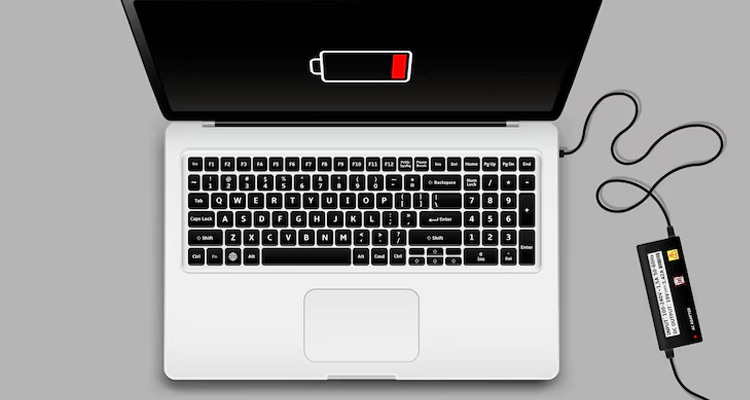

Microsoft Surface Battery Draining So Fast? Here's How to Fix It & Maximize Battery Life!
Your Microsoft Surface is built for performance, portability, and productivity. But if your Surface battery is draining too fast, it’s not just frustrating — it’s a productivity killer.
Whether you’re using a Surface Pro, Surface Laptop, or Surface Book, sudden battery loss is a common issue many users face. But don’t worry — you’re not alone, and it’s usually fixable.
In this blog, we’ll walk you through why your Surface battery dies quickly, how to troubleshoot and fix it, and tips to extend your battery life.
🤔 Why Is My Microsoft Surface Battery Draining So Fast?
Let’s look at the most common reasons:
1. Background Apps Eating Power
Apps like Chrome, Teams, or auto-updaters running in the background silently consume power even when you’re not using them.
2. Display Brightness
Surface devices have gorgeous, high-resolution displays — but at full brightness, they can drain your battery rapidly.
3. Wi-Fi, Bluetooth & Location Always On
Keeping unnecessary wireless services running 24/7 can be a major power drain.
4. Outdated Firmware or Windows Updates
Outdated drivers or system bugs can lead to inefficient battery usage.
5. Battery Age or Degradation
Batteries degrade over time. If your Surface is a few years old, it might be showing signs of wear.
6. Sleep Mode Not Configured Properly
Some Surface devices keep running in the background even when you think they’re asleep.
✅ Quick Fixes to Solve Fast Battery Drain on Microsoft Surface
🔌 1. Check Battery Usage by App
Let’s find the culprit.
-
Go to Settings > System > Power & Battery > Battery Usage
-
Identify apps draining the most battery — especially those you don’t use often
Uninstall or limit those apps from running in the background.
💡 2. Adjust Display Brightness & Timeout
Lower your screen brightness and reduce screen-on time:
-
Settings > System > Display > Brightness
-
Also go to Power & Battery > Screen & Sleep, and adjust timing settings to turn off when idle.
🔄 3. Update Windows & Surface Drivers
Microsoft regularly rolls out patches to fix battery and performance issues.
-
Go to Settings > Windows Update > Check for updates
-
Also visit Surface Diagnostic Toolkit on Microsoft's website for specific hardware-related updates.
💤 4. Optimize Sleep & Power Settings
Misconfigured sleep mode can keep your device running in the background:
-
Settings > Power & Battery > Battery Saver — turn it on!
-
Use “Best Power Efficiency” mode instead of “Best Performance”
-
Configure sleep after X minutes under plugged-in and battery modes
🧹 5. Turn Off Background Apps
-
Settings > Apps > Installed Apps > Advanced Options
-
For each app you don’t need always running, disable “Background App Permissions”
📶 6. Disable Unnecessary Features
Turn off Bluetooth, location, and Wi-Fi when not in use.
You can also toggle Airplane Mode when working offline to conserve power.
🔧 Advanced Fixes (For Power Users)
⚙️ Reset Power Plan Settings (CMD):
📊 Battery Health Report (CMD):
It creates a battery report you can view in your browser to analyze charge cycles and battery wear.
🛑 When to Seek Professional Help
If your Microsoft Surface battery continues to:
-
Drop to 0% within 1–2 hours of normal use
-
Overheat while charging
-
Show “Plugged in, not charging” errors
-
Or if the battery swells (visible bulge)
👉 It's time to contact a Microsoft Surface battery replacement service or an authorized technician. Don't delay — battery swelling can be dangerous.
💼 Surface Models Affected By Fast Battery Drain:
-
Surface Pro 4 / 5 / 6 / 7 / 8
-
Surface Laptop 3 / 4 / 5
-
Surface Book 2 / 3
-
Surface Go
🧠 Final Tips to Extend Surface Battery Life
-
Always update Windows and Surface firmware
-
Keep brightness and background usage low
-
Use hibernate instead of sleep when not using for long hours
-
Don’t overcharge — unplug when full
-
Avoid using your Surface on soft surfaces (beds/cushions) that trap heat
💬 Conclusion
Your Microsoft Surface battery draining too fast doesn't mean you need a new device. In many cases, simple software tweaks, setting adjustments, or a fresh battery health check can bring your device back to life.
Stay productive, stay powered, and let your Surface work as smart as you do. 🔋💼
Leave A Comment